Artifacts, conversion, and inference
Artifacts are retained files such as model weights, converted models, run outputs, and reference files. Project files and the account artifact library have different scopes.
Find and protect a file
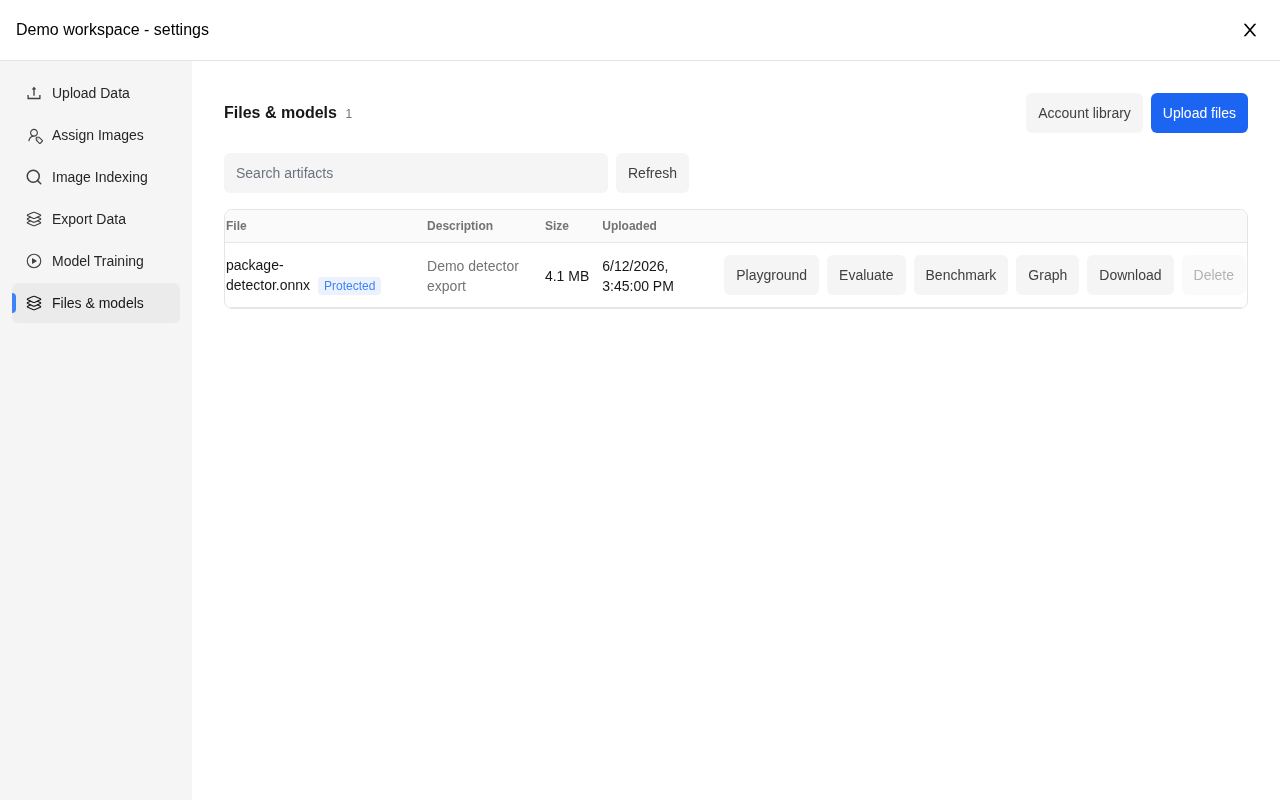
Demo data · The real project file interface with a sample record.
Files & models is the bridge between dataset work and model use. Training checkpoints, conversion outputs, reports, and reference files can be inspected or downloaded without mixing them into your annotation image grid.
| Action | Use it for |
|---|---|
| Upload | Keep a model or reference file with the project |
| Download | Take the original retained file to another tool |
| Protect | Keep an important project artifact across project removal |
| Evaluate / Benchmark | Measure an eligible model using a stated dataset or timing protocol |
| Convert | Produce a supported ONNX or TensorRT target |
| Inference action | Try predictions and inspect a supported model's output |
- Open a project's files section for project-specific artifacts, or Settings for the account library.
- Filter or refresh the list and inspect the file's metadata.
- Download the file you need.
- Protect important artifacts before removing their source project.
Open file lists update after SDK uploads, file changes, and generated outputs. Your search, page, and unsaved description remain in place; a new file outside the current search or page will not appear there. Returning to the tab or reconnecting also refreshes the list, and Refresh remains available if a network update is delayed.
Protection prevents direct deletion and preserves a project artifact when the project is removed. Protected files still use storage. Unprotecting a file allows deletion; it does not delete it automatically. Account files do not need a project.
Keep a metric checkpoint's metadata
Protecting a completed, tracked DINOv3 metric best.pt or last.pt also retains its verified model-metadata.json. The metadata file shows Required by protected model and cannot be deleted or unlocked while a protected checkpoint depends on it. Its own protection setting remains separate; unlocking every dependent checkpoint releases the requirement without deleting the metadata.
For a checkpoint protected before this support was added, deletion may ask its owner to refresh protection. Protect the checkpoint again before retrying project or workspace deletion. An explicit unlock can release a pending package after deletion failed, without moving storage billing. An uncertain storage copy still requires inspection before release.
Retained files and their metadata remain downloadable in the account library. Model conversion and inference currently require the live source project; retention does not preserve its run screen or create a new execution destination.
Keep files independently of a workspace
The account library belongs to the file's original account owner. Account files and protected project files retained during workspace removal remain available there even if that was the owner's last workspace. The file details show Account library when no workspace is assigned for storage billing; DataHub does not choose another workspace on your behalf.
You can continue to inspect, download, describe, protect, unprotect, or delete eligible account files without creating a replacement workspace. Protection still prevents deletion until you explicitly unprotect the file. Ordinary unprotected project files remain subject to project deletion policy.
Protecting or unprotecting a file changes its protection only. Move storage billing is a separate explicit action offered when you have an eligible owned workspace. Uploading a new file also requires a valid active storage workspace; existing retained files remain browsable when none is available.
Detached account-library bytes are separate from the deleted workspace's physical storage observation. They are accounted for by the applicable account-owner storage admission policy; this does not introduce a single global allowance pooled across all your workspaces. See storage observations and plan usage.
Convert a supported model
Choose a worker to see a conversion resource assessment before submitting. It accounts for the checkpoint size, requested batch and image dimensions, dynamic profile maxima, and TensorRT workspace. GPU, host RAM, and disk estimates are planning heuristics; temporary memory pressure can leave an accepted job queued. Unsupported GPU architectures or environment recipes require another worker or a worker update.
The SDK's training.assess_conversion() performs the same read-only check without creating a run or charging compute. Submission checks the current report again.
- Choose a completed, tracked source artifact with a supported conversion action.
- Select a compatible worker and target format.
- Review input dimensions, precision, batch settings, and any dynamic profile.
- Submit the conversion and inspect its result and retained output artifacts.
Conversion retains the original weights. A filename alone does not establish valid model lineage or conversion support. Supported sources and settings are checked before execution.
ONNX is a model exchange format, but an ONNX file still needs a compatible parser and runtime. TensorRT engines are tied to the target GPU and runtime; do not assume an engine built on one machine can run on another.
FP16 conversion permits reduced-precision tactics where supported. It does not promise that every operation uses FP16. Conversion parity checks compare outputs under the stated test settings, not dataset accuracy.
Run inference
Try a model on an image
- Open the eligible model's inference action in Files & models.
- Select an image and inspect the task/parser defaults.
- Choose the execution worker when required.
- Adjust supported confidence or result limits for the task.
- Submit once and inspect the prediction overlay and summary.
For detection, look at the class and box placement; for segmentation, inspect the boundary; for pose, check landmark positions and skeleton connections. OCR region detection and text recognition answer different questions, so confirm which output the selected model produces.
Use the model's available inference action and defaults. Select an input image, review parser and task settings, and choose a compatible worker when required. The capabilities and defaults determine whether that artifact is eligible.
Supported ONNX models can use bounded DataHub CPU inference when available and within its allowance. Native checkpoints require an explicitly selected compatible worker. TensorRT inference requires the supported engine workflow and its matching target device and runtime; there is no CPU fallback for an engine.
For pose models, coordinates-only keypoints do not acquire invented visibility or confidence values. OCR detection produces text regions; text recognition is a separate model task.
Reopen a result
A useful experiment loop
Train a model, evaluate it on held-out data, and inspect a few representative predictions. If the results expose missing examples or inconsistent labels, return to the project, improve the dataset, and make another version. Keep the earlier model and reports so the comparison remains understandable.
Use retained inference history to view the original input and result. Viewing a retained result does not submit another inference request. Availability depends on the retained run, artifact, and project authorization.
See Model training and the SDK model workflows for automation.