Train and monitor models
DataHub runs training recipes on your registered workers. Choose a recipe and worker that support your dataset task.
Start a training run
Choose a task and model
| Goal | Catalog examples | Data to prepare |
|---|---|---|
| Locate objects | Ultralytics detection, RF-DETR | Detection boxes |
| Trace objects | Ultralytics segmentation, prompted SAM 2.1 | Compatible masks or segmentation labels |
| Classify an image | Ultralytics classification, OpenCLIP or DINOv3 linear probes | Image-level classes |
| Learn visual similarity | DINOv3 retrieval embeddings | At least two classes, with distinct examples in train and validation |
| Predict rotated boxes | Ultralytics oriented detection | Oriented-box labels |
| Predict landmarks | Ultralytics pose | Consistent skeleton and keypoints |
| Locate or read text | PaddleOCR detection or recognition | Text regions or transcripts/crops |
| Find visual anomalies | Bounded PatchCore recipe | The recipe's normal/anomaly dataset structure |
Start with the output you want, then select a compatible recipe. The model card describes its training scope: a frozen linear probe learns a classifier rather than retraining a whole vision-language encoder.
Train retrieval embeddings
The DINOv3 retrieval recipe fine-tunes selected encoder blocks and produces normalized 384-dimensional image vectors. It uses your image-level class labels to define similar images. This is separate from a classifier or DreamSim's preference-triplet supervision.
Use an ImageFolder Classification export with at least two classes. Each class needs at least two distinct training images and two validation images. The selected samples per class can raise the training minimum. The default batch has two classes and two images per class.
The run reports validation retrieval Recall@1/5/10 and exact full mAP, excluding each query from its own gallery. These are retrieval scores, not classification accuracy. Evaluation uses disk-backed embeddings and an explicit validation-size budget; no validation samples are silently dropped. Choose a worker advertising this recipe, using worker 0.2.14 or later.
Download the encoder checkpoints and model metadata from the run. The metadata records preprocessing, source weights, frozen and trainable checksums, and whether data-driven encoder updates occurred. Checkpoint pause/resume is not yet offered for this recipe.
Export and try the trained embeddings
- Open Files & models and choose Convert for the run's
best.ptorlast.pt. - Select a compatible CPU worker advertising the metric converter, using worker 0.2.15 or later.
- Keep the default static batch of one, or enable a dynamic batch and choose a nominal batch from one to four. Image dimensions stay fixed at 256×256.
- Review resource fit and start the conversion. The original checkpoint remains available beside the generated ONNX file and conversion metadata.
- Open the ONNX graph to inspect its inputs and outputs, or open the model playground and upload a query image.
The ONNX model produces normalized 384-dimensional vectors. Playground results show vector values, not classification probabilities. ImageNet normalization is embedded in the graph; use RGB/255 and the fixed stretch preprocessing. Browser and SDK inference each process one image per request, including dynamic-batch graphs. Conversion verifies numerical agreement with the native model; it does not establish accuracy on your application. TensorRT export for this recipe is not yet available.
Queue the experiment
Demo data · Choose the recipe, worker, and parameters for the dataset version you prepared. Review compatibility before submitting once.
- Prepare a completed dataset version and compatible export.
- Open the training action for that version.
- Choose an available trainer and its supported model options.
- Select a worker and the required device, then review parameters.
- Review the resource assessment and workspace admission limits.
- Submit once and open the resulting run.
The trainer catalog defines supported inputs and parameters for detection, segmentation, classification, pose, OCR, and other available tasks. Use the recipe's stated task and dataset format.
Read resource assessment
Reported free memory, disk, and GPU memory are observations. Estimates help screen a job but are not reservations or guarantees. Missing or stale evidence is unknown, not zero free capacity or proof of fit. A queued run is checked again before allocation.
Dataset staging, environment preparation, compute, and output delivery are separate phases. Disk pressure or an unavailable connection can delay delivery after compute has stopped. Inspect the current run's recovery message before resubmitting.
Resource checks for queued jobs
Queued jobs receive an admission resource plan before a worker claims them. DataHub can refresh estimates when the pinned recipe and saved configuration can be reproduced. The original parameters, source references, and configuration checksums remain intact; the run details show the admission estimates separately.
If a historical recipe or source cannot be verified, the job stays queued with a review message. Inspect its saved configuration, submit a new run using a reviewed recipe if needed, and cancel the old job when it is no longer wanted. DataHub does not silently replace a historical environment with the newest one.
An updated plan may require a current worker. Update an idle worker when prompted, or wait for the selected machine's resources to become available. Active runs and retained-output delivery continue with their existing execution configuration.
Follow a run
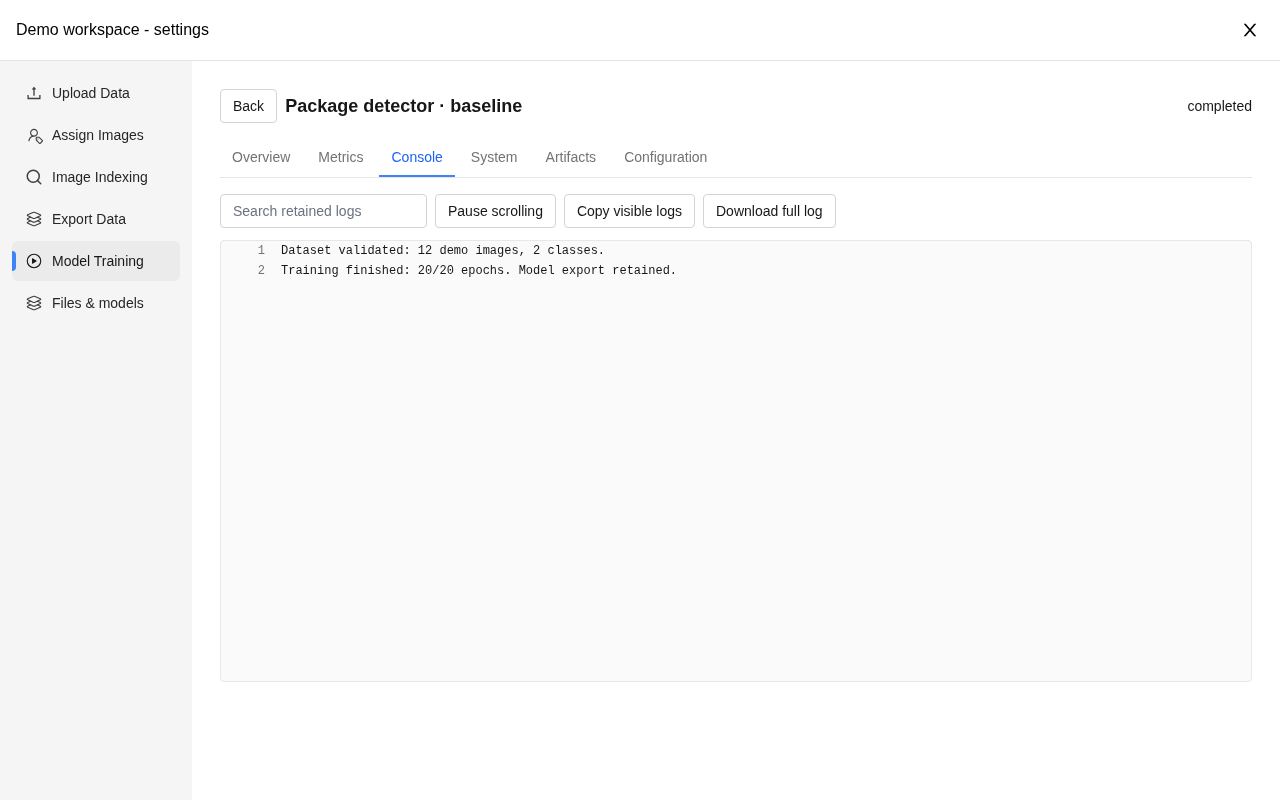
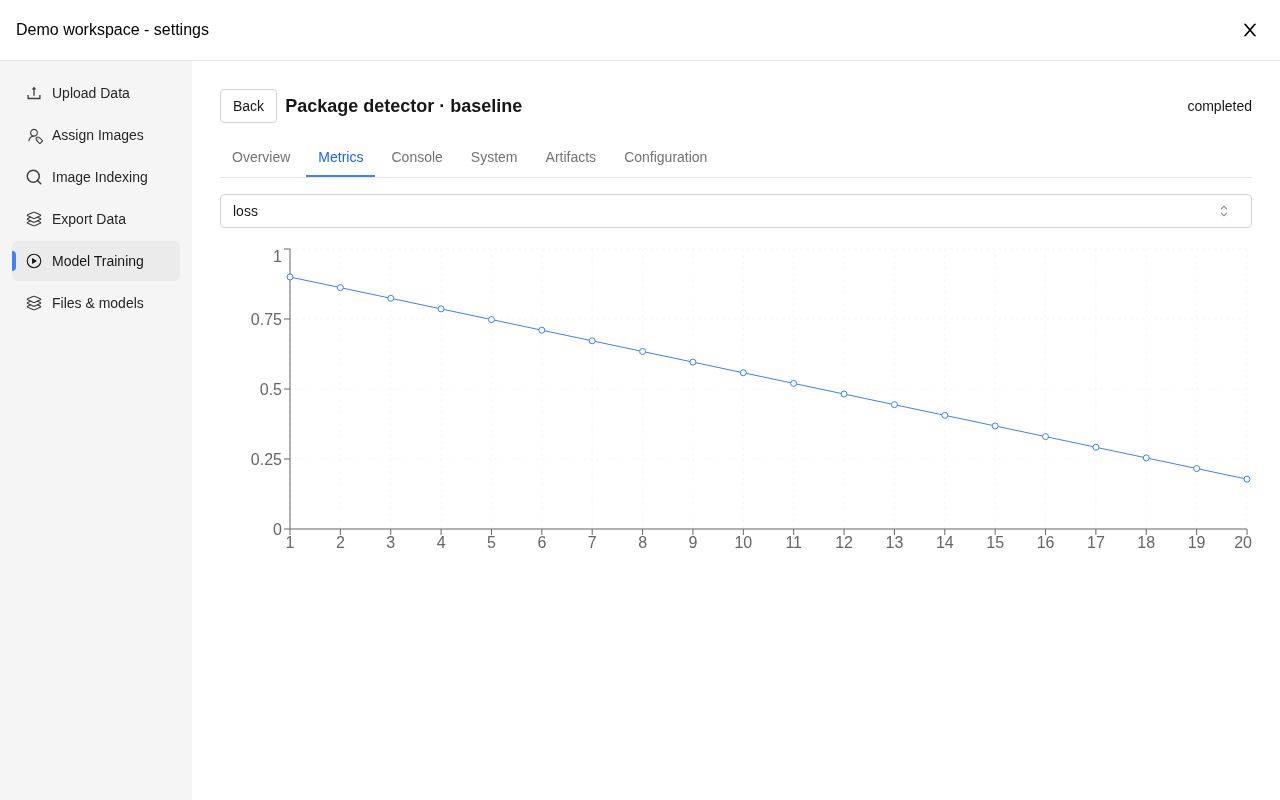
Demo data · Open the console for execution messages and the metrics view for the values the recipe reports. These example values illustrate the interface, not model quality.
Model Training collects training and related model jobs. Open a row to inspect its console, charts, hardware observations, and output files.
Metrics depend on the task. Detection may report precision, recall, and average precision; classification can report accuracy; segmentation and pose have their own measures. Compare validation results as well as training loss, using the same dataset and evaluation setup. Hardware charts describe resource use, not model quality.
Use the run details to inspect status, console output, metrics, hardware samples, and retained artifacts. Recent event windows can be truncated; use the available log download or history controls for earlier output. A failed or cancelled terminal status is not a successful model result.
Pause, resume, and cancel
Pause is available only for supported checkpoint-capable jobs. Supported single-GPU Ultralytics training pauses asynchronously at an epoch checkpoint. It becomes paused after checkpoint delivery and resource release. Resume requires the same worker and retained working data.
Cancellation is a request, not an immediate guarantee that the container has stopped. Wait for the reported outcome. Do not manually delete retained worker containers or working data to simulate cancellation.
Compare configurations
Reusable YAML or JSON configurations prepare settings for review. Importing a configuration in the browser does not itself submit a job.
Sweeps submit several trials and consume pending-run capacity. Compare trials using the same dataset and relevant metric; a sweep is not distributed training of one model. Cancelling a sweep stops future dispatch and requests cancellation of its existing children.
Evaluate and benchmark a model
In Model Training → New run, choose Evaluate model or Benchmark inference. Eligible files also expose Evaluate and Benchmark in Files & models.
- Select the model artifact and dataset version/export.
- Review the model contract, worker, and device.
- For evaluation, review the held-out split and task settings.
- For benchmarking, choose the timing scope, warmup, and measured iterations.
- Queue the run and open its report when complete.
Evaluation compares predictions with ground truth. Benchmarking measures latency under a stated protocol. End-to-end timing includes work such as preprocessing; model-only timing uses prepared tensors. Compare matching protocols.
Continue from a trained model
Open its checkpoint in Files & models to download it, evaluate it, convert it, or try supported inference. See Artifacts, conversion, and inference.
Custom Python workflows
Custom Python jobs require the worker owner's explicit opt-in, appropriate project access, and a compatible agent. They use selected reviewed environments and bounded resources; they are not a way to install arbitrary dependencies on the worker host.
Custom evaluation and benchmark labels describe the script's own protocol and metrics. Record the dataset, preprocessing, and measurement settings when comparing results. Custom jobs support cancellation, but not checkpoint pause. See the SDK documentation for their separate API.
Continue with Workers or Artifacts and inference.