Dataset versions and exports
A dataset version prepares selected project data for a repeatable download or model workflow. An export then represents that version in a chosen dataset format.
Build a version
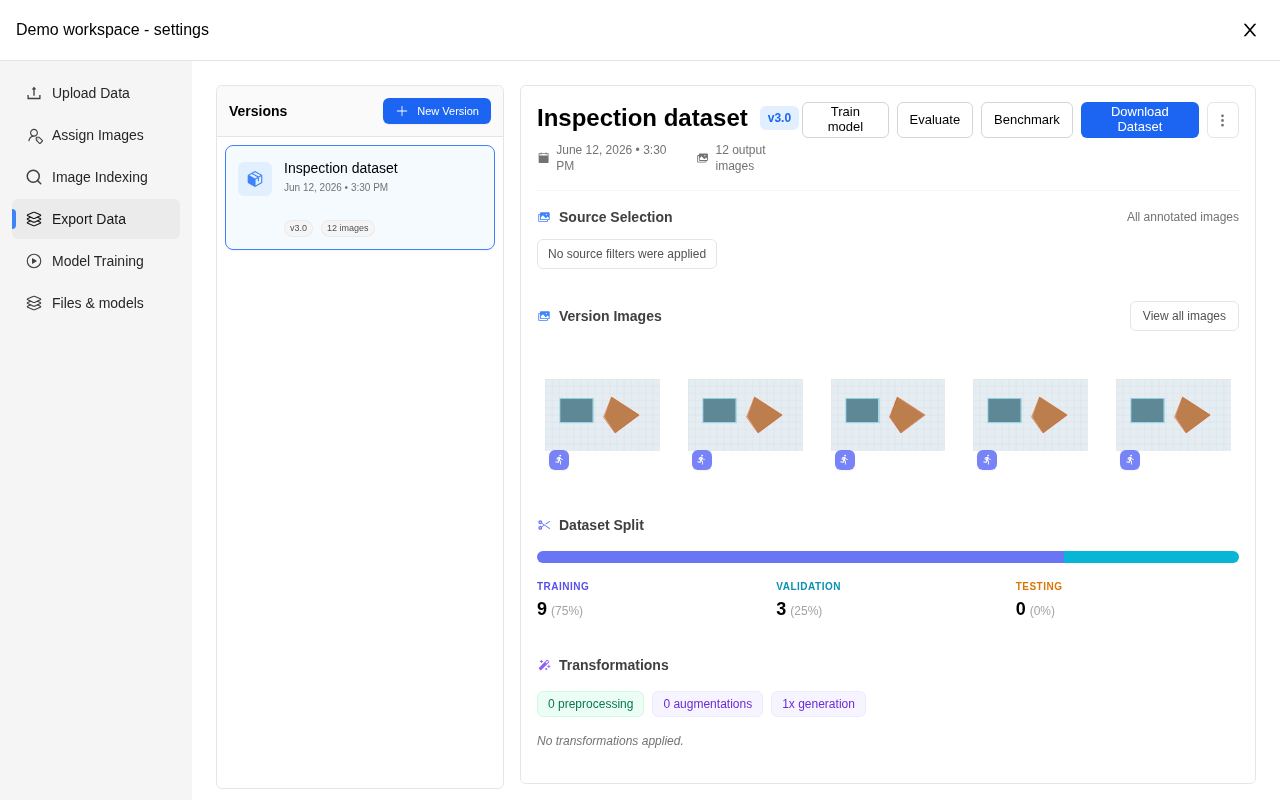
Demo data · Inspect the version's images and split allocation before generating the format your training tool expects.
Give versions names that describe their purpose: a reviewed batch, a different image size, or a new augmentation setup. The editable project remains your working collection; versions are prepared inputs for training and download.
- Open the project's Export Data section and create a version.
- Review the selected data and filters.
- Choose the split strategy and train, validation, and test allocation.
- Add preprocessing steps in the order you need them.
- Add augmentations and review their settings and generation factor.
- Preview representative images, then submit the version build.
- Wait for the version's terminal status and inspect warnings or failures.
Preprocessing prepares the input; augmentation creates training variation. Changing their order can change both pixels and geometry.
Understand previews
Choose variation that reflects situations your model should handle. Lighting changes may help camera inspection; flipping text may make OCR examples less realistic. Pose datasets need meaningful left/right pairs. Start simple, then add variation and compare on the same held-out data.
A composed preview processes the example through the selected step. Editing a step includes its preceding steps, not later steps. Augmentation previews also include the preprocessing prefix.
The preview is a seeded example, not a promise that every full-resolution generated image will have identical random pixels. Filtering can remove examples, and expansion steps can produce several examples. Observe any truncation or resource-limit message instead of assuming all outputs are shown.
Generate an export
Match a format to your task
| Task | Relevant format examples |
|---|---|
| Detection | COCO, Pascal VOC, YOLO detection variants |
| Segmentation | COCO RLE, YOLO Segmentation, PNG masks, Segment Anything 2 |
| Classification | ImageFolder Classification |
| Pose and landmarks | COCO Keypoints, YOLO Pose |
| Text recognition | PaddleOCR Recognition crops and transcripts |
| Labeling-tool exchange | LabelMe, VIA, and other formats in the menu |
Choose the format your trainer or labeling tool expects. The format menu and summary show the exact choices for your data.
Generate and inspect the files
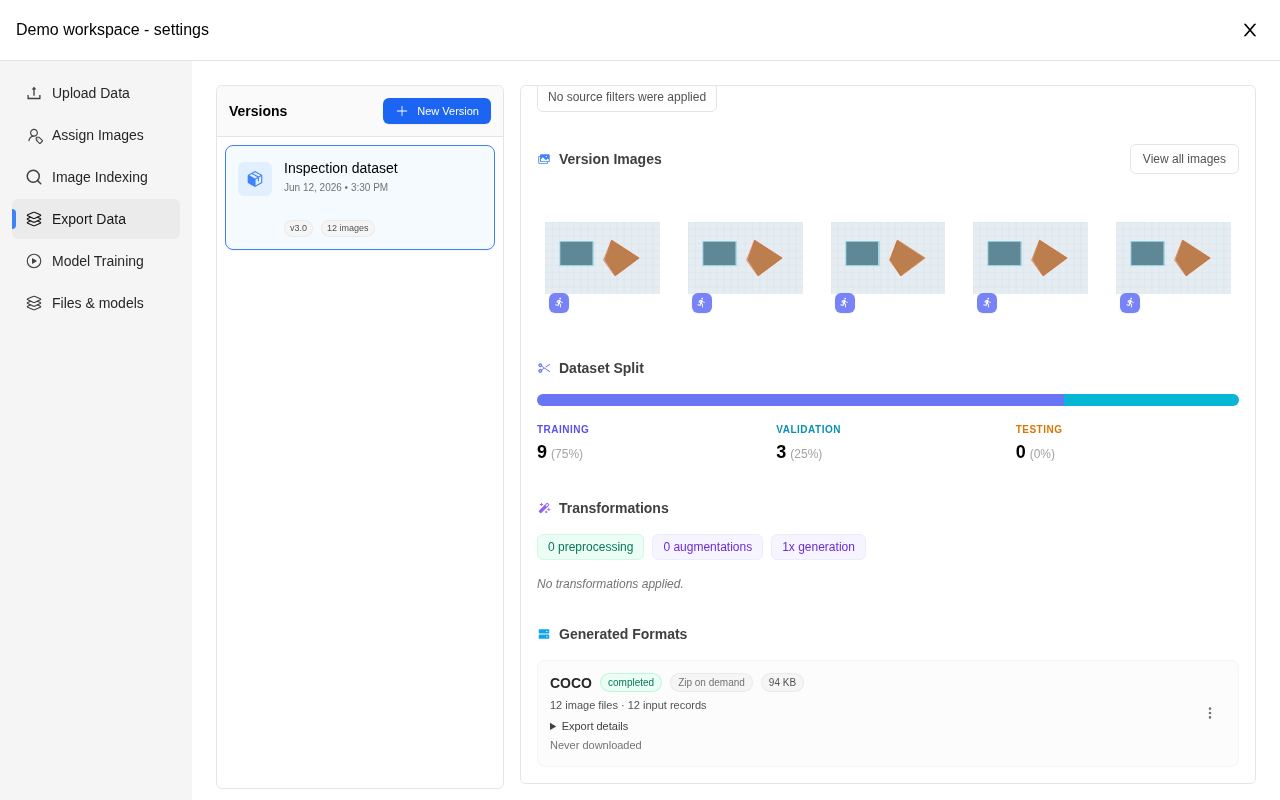
Demo data · The completed export card reports source records, image files, exported labels, and skipped kinds. Open its details before downloading or starting training.
- Choose a completed version.
- Select a format suitable for your trainer or labeling tool.
- Review format-specific options, such as image conversion or box conversion.
- Generate the export and wait for completion.
- Inspect its summary and download the archive.
Different formats preserve different geometry. A detection format may use boxes where the source contains polygons; a format without a particular annotation type may omit it. Review supported, exported, and skipped counts rather than assuming every source annotation is represented.
Source records and image files are different counts: some formats can produce multiple crops from one input. Skipped reasons can overlap, so adding those counters does not give a count of unique failed images. Open the archive and check a representative image and label together when validating a new export setup.
Classification exports require meaningful image-level classes. Mask exports and keypoint exports have their own class and geometry requirements. For custom metadata, verify the intended consumer understands the exported extension fields.
Failed, queued, or recovery-required exports
Use the existing export's status and controls. A recovery-required export needs status inspection or operator help; creating another generation is not a safe substitute for resolving an uncertain publication. Generation allowances can still apply to submitted attempts.
Deleting an export is separate from deleting the source version or project. Keep a downloaded copy when needed, and wait for scoped cleanup to finish before assuming storage is released.
Next: Model training or SDK downloads.